
Thirteen free daily schedule templates for Microsoft Excel — hour-by-hour planners for work, study, shifts and family routines. Below the downloads is the part that decides whether a daily plan survives past ten in the morning.
- Templates13 layouts
- FormatMicrosoft Excel
- Opens inExcel, Google Sheets, LibreOffice
- CostFree, no signup
A schedule or a to-do list?
These solve different problems, and using the wrong one is why plans fall apart. A to-do list answers what needs doing. A schedule answers when — and in doing so, forces you to admit how much actually fits in a day.
| Use | Good for |
|---|---|
| Daily schedule this page |
Time-bound days. Appointments, classes, shifts, meetings, anything where the clock drives the day. Shows you immediately when you have overcommitted. |
| Daily to-do list | Task-bound days. You control your own hours and need to track what gets done rather than when. |
| Weekly planner | Seeing several days at once, and spreading work across a week. |
| Staff rota | Scheduling other people rather than yourself. |
Plenty of people run both: a schedule for the fixed commitments, a short list for the tasks that fill the gaps between them.
The templates
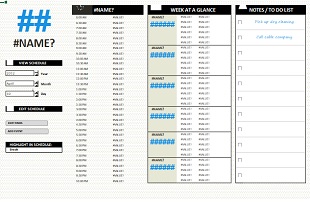
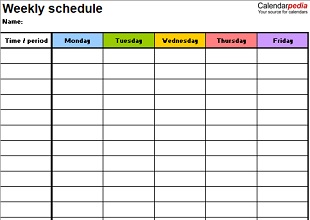
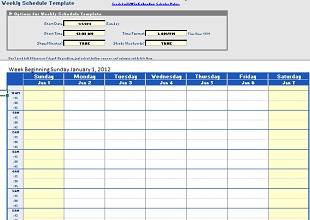
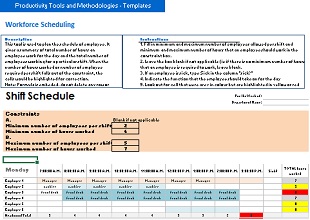
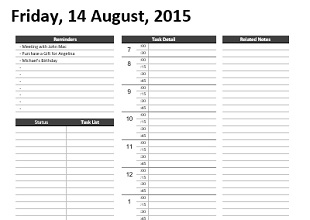
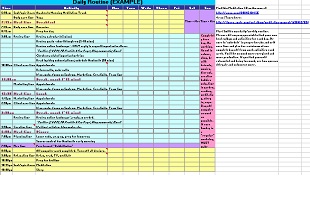
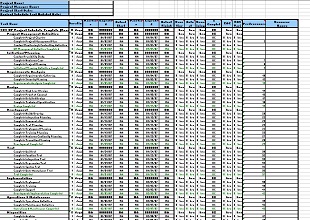
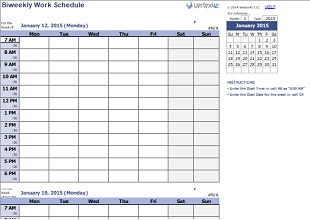
Thirteen layouts, differing mainly in how the day is divided and how much room each slot gets. Pick the one whose time divisions match your actual day, not the one that looks tidiest.





How finely should you divide the day?
- Hourly suits most people. Enough structure to be useful, loose enough to survive a day that does not go to plan.
- Half-hourly suits appointment-based work — clinics, tutoring, consultations, anything booked in slots.
- Fifteen minutes suits billable work where you must account for time, and almost nobody else. At this granularity the admin of keeping the schedule starts eating the time it is meant to protect.
- Morning, afternoon, evening suits family routines, children’s days and anything where exact times are a fiction.
Planning a day that survives contact
Most daily schedules fail the same way: every hour is filled, the first thing overruns, and by eleven the sheet is fiction. Four habits prevent it.
-
Block the fixed things first
Meetings, classes, the school run, shifts, anything with a time attached that is not yours to move. What is left is the time you actually have, which is almost always less than you assumed.
-
Only plan about two-thirds of it
Leave roughly a third of your free time unscheduled. It is not slack — it is where overruns, interruptions and the thing that arrives at four o’clock go. A plan with no space is a plan that breaks on first contact with the day.
-
Put the hard task in your best hours
Most people have two or three hours when they think clearly. Spend them on the work that needs thinking, and put email, admin and calls in the hours when you are flagging anyway. Reversing this is the commonest planning mistake there is.
-
Batch the small things
One block for email, one for calls, one for admin, rather than scattering them through the day. Switching between kinds of work costs more time than the tasks themselves.
At the end of the day, glance at what actually happened against what you planned. After a week you will know your own margin of error, which is more useful than any scheduling system.
Working with times in Excel
- Fill the time column by dragging. Type the first two times, select both, then drag the small square at the corner of the selection down the column. Excel continues the interval — hourly, half-hourly, whatever you started with.
- If your times turn into decimals, the cells are formatted as numbers. Select the column and set the format to Time, then retype the first entry.
- Use 24-hour time if you work past midnight. Night shifts crossing midnight are where AM and PM formatting causes the most confusion.
- Keep it to one printed page. Page Layout, then Scale to Fit with Width and Height both set to 1 page. This is the setting that stops a planner printing across two sheets with the evening stranded on its own.
- Freeze the time column with View, Freeze Panes if your template is wide enough to scroll sideways.
Common questions
Do I need Microsoft Excel?
No. Upload the file to Google Sheets and it opens free in a browser, or use LibreOffice Calc. The fill-and-drag method works in all three.
Can I change the start and end times?
Yes. Change the first time in the column, then drag down to refill the rest. Early shifts and late ones only need the starting value changed.
Can I use one of these on my phone?
Yes, through the Google Sheets or Microsoft Excel app. Worth doing if you will be updating the schedule during the day rather than only at a desk.
Is there a version for a student timetable?
Any hourly layout works. Fill in classes as fixed blocks first, then schedule study time into the gaps — the gaps are where a timetable actually earns its keep.
Should I print it or keep it on screen?
Print it if you want it visible all day without opening anything. Keep it digital if your day changes often and you will be rearranging blocks. Many people print the fixed schedule and annotate it by hand.
Can I use these at work?
Yes, including for team use. You may not resell or redistribute the template files themselves. See our Terms of Use.




Pingback: 10 Free Daily To Do List Templates for Word & Excel
Pingback: Weekly Calendar Templates for Work, Study and Family Weeks
Pingback: Printable Daily Planner Pages with Prioritised Task Lists
Pingback: Weekly To Do List Templates: Plan What the Week Can Hold