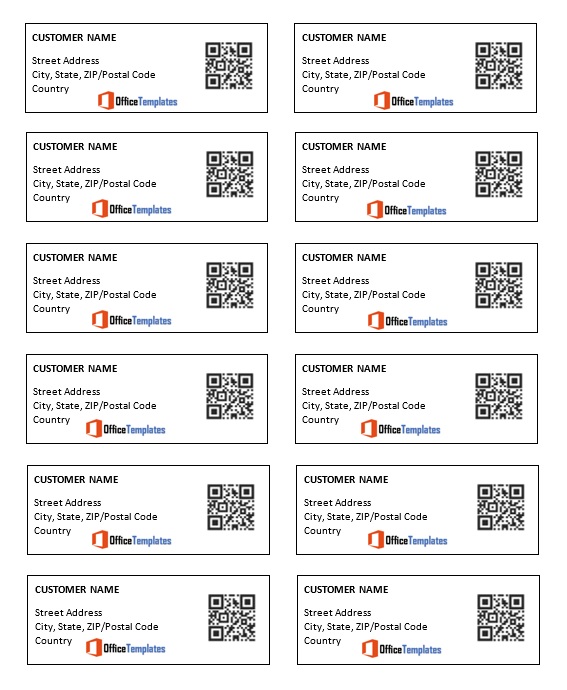
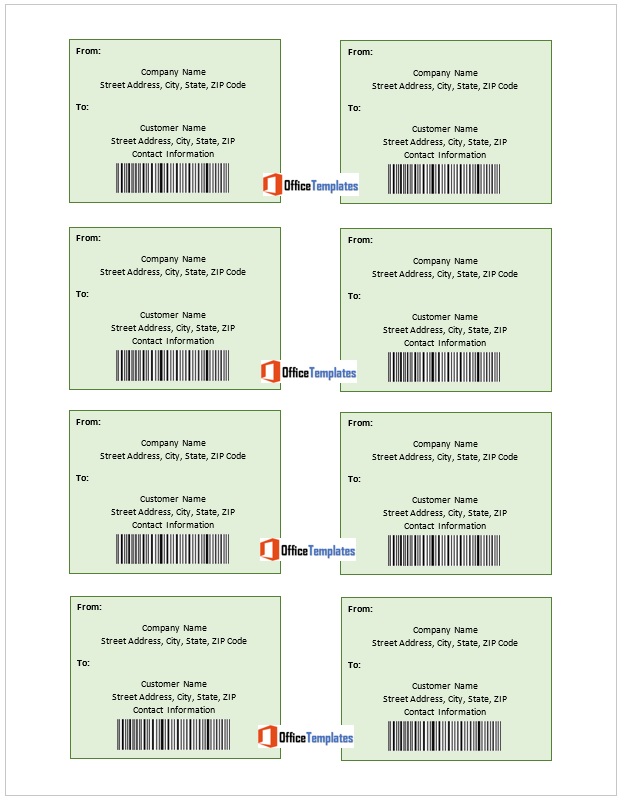
Six free mailing label templates in Microsoft Word, for addressing envelopes, printing return address labels and running off a batch for a mailing. Most of the difficulty with printed labels is not the design — it is getting the template to line up with the physical sheet in your printer, which has a reliable answer most people never learn.
Templates6 designs
FormatMicrosoft Word
Print onLabel sheets or paper
CostFree, no signup
Mailing label or shipping label?
The words overlap, and which one you want changes the answer to almost every question.
Six Word layouts to edit and print. Each download is a zip file — extract it before opening, and do the plain-paper alignment check below before using label stock.
This is where printed labels go wrong, and the fix takes about a minute.
Every pack of label sheets carries a product code — a number like 5160 on US letter stock, or an L-prefixed code such as L7160 on A4 stock in Europe. That code defines the exact size and position of every label on the sheet, and Word has the whole catalogue built in. Pick the code rather than measuring.
In Word: Mailings, then Labels, then Options, choose the vendor and the product number printed on your packaging, and Word builds a grid that matches the sheet exactly. Do this before laying anything out, because changing it afterwards reflows everything you have positioned.
Two sizes worth knowing by name: Avery 5160 is the classic address label at 2⅝ by 1 inch, thirty to a sheet, which is what most US letter templates assume. Avery 5167 is the small one at 1¾ by ½ inch, used for return addresses. For anything else, read the box — and note that letter-size and A4 sheets are not interchangeable even when the label looks similar, so a template built for one will not line up on the other.
If your sheet has no code, or the code is not in Word’s list, measure one label and the margins and set up a custom size in the same dialog. Keep the custom definition, because you will buy the same stock again.
Envelopes, and which label suits
Envelope
Size
Usual use
#10
4⅛ by 9½ inches
The standard US business envelope. Takes a letter folded in three.
DL
110 by 220 mm
The European equivalent. A4 folded in three.
C5
162 by 229 mm
A4 folded once. Good for documents you would rather not crease twice.
C6
114 by 162 mm
A4 folded in four, or A6 cards and invitations flat.
6 by 9 inch
—
US booklet envelope, takes a letter folded once.
A small address label suits a #10 or DL comfortably. On a larger envelope a bigger label looks deliberate rather than mean, and gives room for a longer address without reducing the type size. Square and unusually shaped envelopes often attract a higher postage rate, so check before committing to a batch of invitations — our invitation templates are sized to go in standard envelopes for exactly this reason.
Window envelopes, which never line up first time
Window envelopes remove the labelling job entirely, provided the address lands behind the window. Getting there is fiddlier than it looks because three things have to agree: where the address sits on the page, where the fold falls, and where the window is on that particular envelope.
Window position differs by envelope, even between two DL envelopes from different suppliers. Never assume a layout that worked last year still works with a new box.
Test with the actual envelope, not a measurement. Print one page, fold it exactly as you intend to fold the rest, insert it, and look. This takes thirty seconds and is the only reliable method.
Leave margin around the address block. Paper shifts inside an envelope in transit and in a sorting machine, so an address that only just fits the window will sometimes be half-hidden. A clear few millimetres on every side absorbs the movement.
Nothing else should be visible through the window. A stray logo, reference number or part of a sentence appearing alongside the address confuses automated sorting.
Fold accurately. Most window alignment failures are folding failures. If you are doing hundreds, a folding guide or a print shop is worth it.
Leave the bottom of the envelope alone
Postal sorting equipment reads the address optically and prints or reads a barcode in a specific area at the bottom of the envelope. Anything you put there interferes with it.
So: keep the lower portion of the envelope clear of logos, slogans, decorative borders and graphics, and do not place a label so low that it intrudes. The address block itself should sit in the middle area with a clear margin around it, with nothing printed below the last line of the address. The general addressing rules — uppercase, minimal punctuation, country name alone on the last line for international post — are set out in more detail on our shipping label page and apply equally to envelopes.
Printing a batch
For more than a handful, use mail merge rather than typing each label — Word fills a whole sheet from a spreadsheet of addresses in one pass. The step-by-step is on our shipping label page, and our address list templates are already laid out with one column per address element, which is what a merge needs.
Three things specific to label stock:
Always test on plain paper first. Print one sheet, hold it against a real label sheet up to the light, and check the text sits inside the label areas. Printers vary by a millimetre or two and that is enough to clip every line.
Feed label sheets one at a time, through the manual feed or rear tray if you have one, so the sheet takes a straighter path. Label stock jams more readily than paper.
Do not reuse a part-used sheet in a laser printer. The heat can lift the edges of the remaining labels, and a label that peels off inside the mechanism is an expensive problem. Save the gaps for a hand-written label or an inkjet, or print the short runs onto plain paper and glue.
If you are posting in volume
Postal services offer reduced rates for bulk mail, and the conditions are mostly about making the mail easy to machine-read. Typically that means a minimum quantity in one mailing, addresses standardised and validated against the postal address file, items sorted or barcoded to the postal service’s specification, and uniform size and weight across the batch.
The savings are real at a few hundred items and the setup is not trivial, so for a first large mailing it is usually worth either talking to the postal service directly or using a mailing house, which will handle the sorting and barcoding and often beats the self-service rate once their discount is applied. Requirements differ by country, so start with your own postal operator’s business mail pages rather than general guidance.
Common questions
Do I need Microsoft Word?
No. These open in Google Docs or LibreOffice Writer, and both can do mail merge. Label layouts depend on exact measurements though, so always do the plain-paper test after opening a template in anything other than the program it was made in.
My labels print slightly too high or too low. How do I fix it?
Almost always a printer margin issue rather than a template fault. Rather than nudging every label, adjust the top margin of the document by the amount of the drift and reprint the test. If it is only a fraction out, check that scaling is set to 100% and not “fit to page”, which is the usual culprit.
Can I print straight onto envelopes instead?
Yes, and Word has an Envelopes tool beside the Labels one. It works well for small numbers and for heavier envelopes a label would not sit flat on. For larger runs, labels are usually less trouble because envelopes feed unpredictably and a misfeed wastes the envelope as well as the ink.
Should I add a return address?
Yes, in the top left corner or on the back flap. It is how undeliverable mail comes back to you rather than being disposed of, and for anything commercial it looks considered. Small return address labels are the one case where the tiny label sizes earn their place.
Where should the addresses themselves live?
In a spreadsheet with one column per element, not in the label document — so you can sort, deduplicate and reuse them. Our address list templates are built for that, and address book templates suit a printed household copy.
Can I use these commercially?
Yes, for your own mail or for clients. You may not resell or redistribute the template files themselves. See our Terms of Use.