Twelve free blank certificate templates for Microsoft Word. Each one is a finished border and layout with the wording left open, so you can type your own title, name and citation and print it the same afternoon.
A blank certificate gives you the hard part — the border, the proportions, the placement of the signature lines — and leaves the words to you. That makes one design usable for completely different occasions: an employee award this month, a training completion next term, a junior football trophy in the summer.
If you want a design that already says what it is for, these may be the wrong page. We have school certificate templates with the wording in place, and gift certificate templates if you are issuing something redeemable rather than commemorative.
The designs
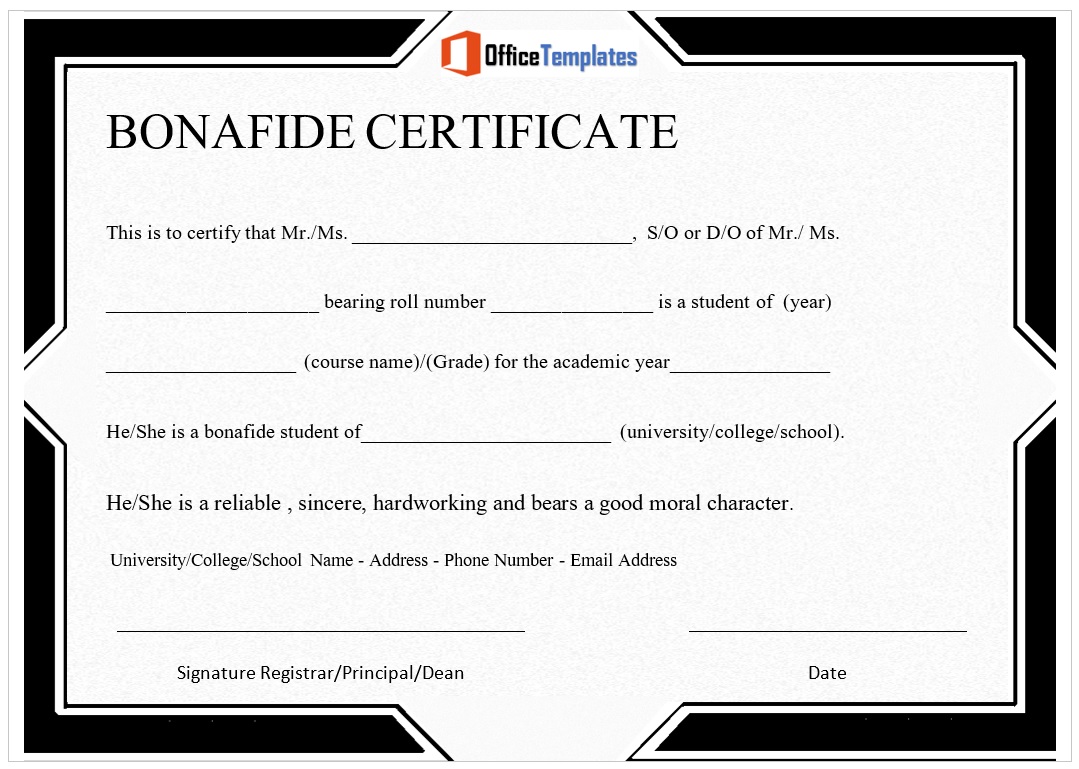
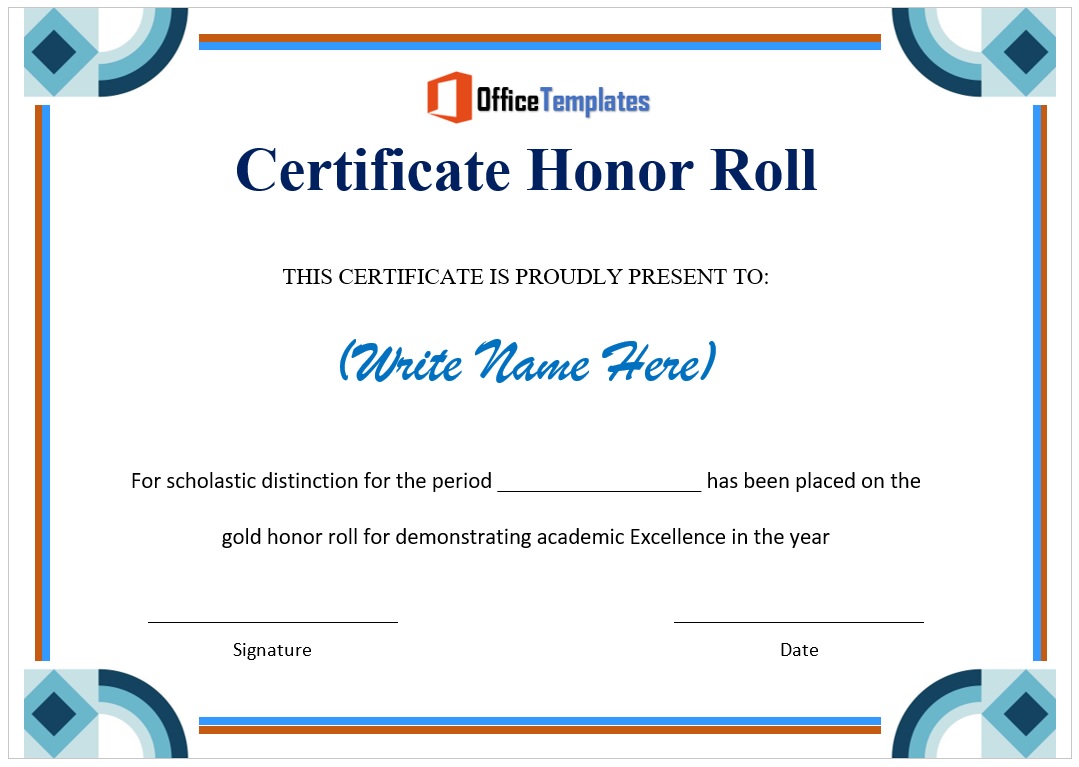
All twelve are single-page Word files in landscape. The borders differ in weight and formality: the heavier, more ornate frames suit awards that will be framed, while the lighter ones photocopy better if you are producing a stack for a class or a team.
This is where most people stall. The design takes ten minutes and the wording takes an hour, because the phrasing on a certificate is more formal than anything you write day to day. Below are openings that work, by occasion.
Occasion
Wording that works
Employee recognition
In recognition of outstanding contribution to the [team or project] during [period]
Years of service
In appreciation of [number] years of dedicated service to [organisation]
Course or training
This is to certify that [name] has successfully completed [course title] on [date]
Academic achievement
Awarded to [name] for excellence in [subject], [school year]
Participation
Presented to [name] in recognition of participation in [event]
Sports or club
Awarded to [name] for [achievement], [season or competition]
Volunteering
In grateful recognition of volunteer service to [organisation]
Children’s awards
Awarded to [name] for [specific thing they did] — keep it concrete and name the actual achievement
Three rules hold across all of them. Name the specific thing rather than praising in general, because “for excellent work” means nothing a year later while “for leading the warehouse move” does. Keep the citation to one sentence. And put the recipient’s name in the largest type on the page, larger than the word “Certificate” itself — the name is the reason the thing exists.
How to edit these in Word
Click straight into the text
The wording sits in text boxes over the border artwork. Click once to select the box, again to put the cursor in it, then type over the placeholder. If clicking selects the border instead, press Escape and try slightly nearer the middle of the line.
Pick two typefaces, not five
A script or ornate serif for the recipient’s name, and one clean serif for everything else. Certificates go wrong when every line gets its own font. If you want a safe pair that is installed everywhere, use Georgia for the body and keep whatever display face the template came with for the name.
Add your logo or seal
Insert the image, then set Wrap Text to In Front Of Text so it floats rather than shoving the layout sideways. Top centre above the title, or bottom centre between the signature lines, are the two placements that look deliberate.
Leave the signature lines empty
Print them blank and sign in ink. A scanned signature dropped into the file looks like what it is, and on an award it undercuts the gesture.
Printing certificates that look the part
More certificates are ruined at the printer than in Word. Three things cause nearly all of it.
The border gets clipped. Most home printers cannot print to the edge of the sheet and quietly reserve a few millimetres all round. On a design with a border near the edge, that crops one side and the whole thing looks crooked. In the print dialog choose Fit to Page or Scale to Paper Size, which shrinks the page slightly and brings the full border inside the printable area.
It prints portrait. These are landscape files. Word usually carries that over, but if your printer defaults to portrait it will squash the design. Check the orientation in the print dialog, not just in the document.
The paper is too thin. Ordinary copier paper makes an award feel disposable. Around 160 to 250 gsm, or 60 to 90 lb cover, is the usual range and still feeds through most home printers. Feed card one sheet at a time, and set the print quality to Best so the large filled areas of the border do not band.
If you are producing a lot of these for one event, print a single copy first and look at it on the desk before committing the stack. Problems with margins and colour are obvious on paper and almost invisible on screen.
Common questions
Do I need Microsoft Word?
No. Upload the file to Google Docs or open it in LibreOffice and you can edit it free. Complex borders occasionally shift slightly outside Word, so check the layout before printing a batch.
Can I print several with different names?
Yes. For a handful, change the name and print each one. For a whole class or team, put the names in an Excel column and use Word’s Mail Merge, which fills the name automatically on each copy.
Can I change the border colour?
Usually. Click the border to select it and use Shape Fill or Shape Outline on the Shape Format tab. If the border is a single flat image rather than shapes, you cannot recolour it in Word — pick a different design instead.
What paper size are they?
US Letter, landscape. For A4, open Layout, Size, A4 and Word rescales the design to fit.
Can I use these commercially?
Yes, including certificates your business or school issues. You may not resell or redistribute the template files themselves. See our Terms of Use.
How do I add a gold seal?
Self-adhesive foil seals cost very little and do more for the finished look than anything you can print. Leave a clear space bottom left or bottom centre and stick one on after printing.











Pingback: 20 Free Stock Certificate Templates for Word
Pingback: 20 Free School Certificate Templates for Word